

Responsive Recipe Page Using CSS Flexbox and Grid

Solution retrospective
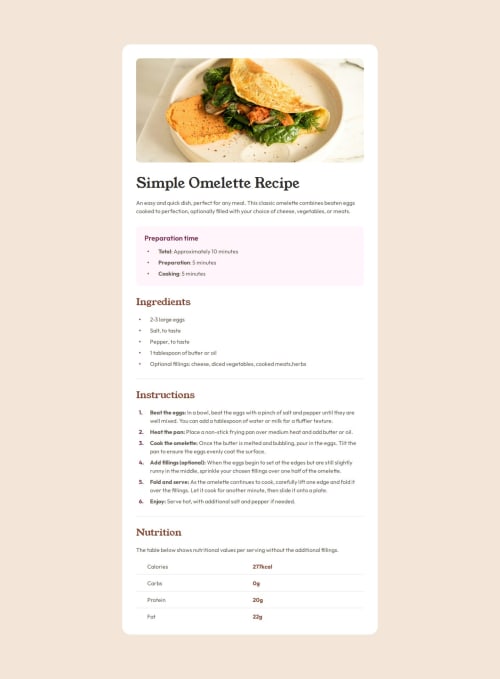
I am most proud of how I implemented the custom list styles that not only matched the Figma design but are also reusable.
Next time, I would explore incorporating a CSS framework for faster styling.
What challenges did you encounter, and how did you overcome them?Initially, I was having trouble figuring out how to add custom styling to the list markers and numbers. After doing some research, I discovered CSS counters, which I leveraged to create the custom styles for the ordered lists.
I then realized that all of the lists in the project (Preparation time, Ingredients, and Instructions) had many properties in common (i.e. layout, size, padding, etc), and restructured my HTML lists uniformly and applied a custom, reusable class, .list, to all <ol> and <ul> list elements within the project.
Here's how the HTML structure was standardized:
<!-- For numbered lists -->
<ol class="list custom-ol">
  <li class="text-preset-4 m-b-100"><span>List Item Text</span></li>
  <!-- Additional list items -->
</ol>

<!-- For bulleted lists -->
<ul class="list custom-ul">
  <li class="text-preset-4 m-b-100"><span>List Item Text</span></li>
  <!-- etc. -->
</ul>
In my CSS, I removed default list styling in my css-reset.css, and the .list class that I created in my styles.css defined the consistent base styles for all lists.
/* styles.css */
.list {
    margin: 0;
    padding: 0;
    width: 100%;

    li {
        display: flex;
        width: 100%;
    }

    li::before {
        font-weight: bold;
        color: var(--color-rose-800);
        height: 100%;
        min-width: var(--spacing-500);
        padding-left: 8px;
        padding-right: 8px;
        box-sizing: border-box;
    }
}

/* css-reset.css */
ol,
ul {
  list-style: none;
}
For ordered lists, I created a class called .custom-ol and used the counter-reset and counter-increment properties to number each item uniquely. I also used the content property to append a period after each number.
.custom-ol {
    counter-reset: css-counter;

    li {
        counter-increment: css-counter;
    }

    li::before {
        content: counter(css-counter) ".";
    }
}
For the unordered lists, I created a class called .custom-ul, and adjusted the content to property to display a bullet point. I also utilized Flexbox by adding align-items: center; to ensure that the bullets were centered vertically to each block of text.
.custom-ul {

    li {
        align-items: center;
    }

    li::before {
        content: "•";
    }
}
Nothing specific, I think I have a good grasp of the concepts that are covered in this Getting Started learning track and I am ready to move on to more advanced challenges. That being said, any feedback is always welcome!
Please log in to post a comment
Log in with GitHubCommunity feedback
No feedback yet. Be the first to give feedback on Coco's solution.

Join our Discord community
Join thousands of Frontend Mentor community members taking the challenges, sharing resources, helping each other, and chatting about all things front-end!
Join our Discord